Tips
How to Get a Video Transcript: Text, SRT, VTT, Word or PDF
Updated October 2, 20268 min read
On this page
- How to get a video transcript in 3 steps
- Where a video transcript comes from
- How to choose the language of the transcript
- Which transcript format to choose: Text, SRT, VTT, Word or PDF
- What you can do with a video transcript
- How accurate are automatic captions
- When no transcript is available
- Transcripts on YouTube, TikTok, Instagram and Facebook
- Free transcripts, credits and the desktop app
- Use transcripts responsibly
- Frequently asked questions
Key takeaways
- To get a video transcript, paste the link on SocialDownload, tick Transcript, choose the language and the format, then download.
- The transcript comes from the captions published with the video: subtitles written by the creator, or automatic captions generated by the platform. Without captions, no transcript is offered.
- Six formats are available: Text, Text with timestamps, SRT, VTT, Word (DOCX) and PDF.
- Choose Text or Word to read and edit, Text with timestamps to quote, SRT or VTT to subtitle a video, PDF to share or print.
- Automatic captions can get names, jargon and accents wrong. Check any quote against the video before you publish it.
How to get a video transcript in 3 steps
A video transcript turns everything that is said in a video into text you can read, search, quote or edit. You do not need to type it yourself or replay the video ten times: when the video has captions, SocialDownload gives you the transcript in three steps.
- 01
Copy the link of the video
Use the Share button of the app, then Copy link, or copy the address bar of your browser.
- 02
Tick Transcript, then pick a language and a format
Paste the link on the SocialDownload home page and tick Transcript. Choose the language from the list, shown by its full name, and the format: Text, Text with timestamps, SRT, VTT, Word or PDF.
- 03
Download the file
Press Download. You can tick the video, the audio or the cover at the same time: everything selected for one link counts as a single download.
The rest of this guide explains where transcripts come from, how to choose the language and the format, what you can do with each file, and what to do when a video has no transcript at all.
Where a video transcript comes from
SocialDownload does not guess what is said in a video. It uses the captions published with it, which come from one of two sources.
| Criterion | Subtitles written by the creator | Automatic captions |
|---|---|---|
| Who makes them | The creator, or a subtitling service working for them | The platform, with speech recognition |
| Accuracy | Usually high, with punctuation and correct names | Good on clear speech, weaker on names, jargon, accents and noise |
| Availability | Only when the creator added them | On many videos in supported languages, sometimes a while after upload |
| Best for | Quoting, publishing, subtitling | Notes, search, a first draft to correct |
On YouTube, for example, many creators upload their own subtitles, and the platform also generates automatic captions for many videos. Automatic captions may not be ready right after upload, because processing takes time. When a video has neither kind, there is nothing to transcribe: the Transcript option stays unavailable, with a note saying the video has no captions.
How to choose the language of the transcript
A video can have captions in several languages. SocialDownload lists every language available for the video by its full name, such as “French”, “Spanish” or “English (United Kingdom)”, so you never have to decode an abbreviation.
- Pick the language spoken in the video for the most faithful text.
- If the creator published subtitles in another language, you can pick that language instead.
- When both written subtitles and automatic captions exist, prefer the written ones: they are usually more accurate.
Which transcript format to choose: Text, SRT, VTT, Word or PDF
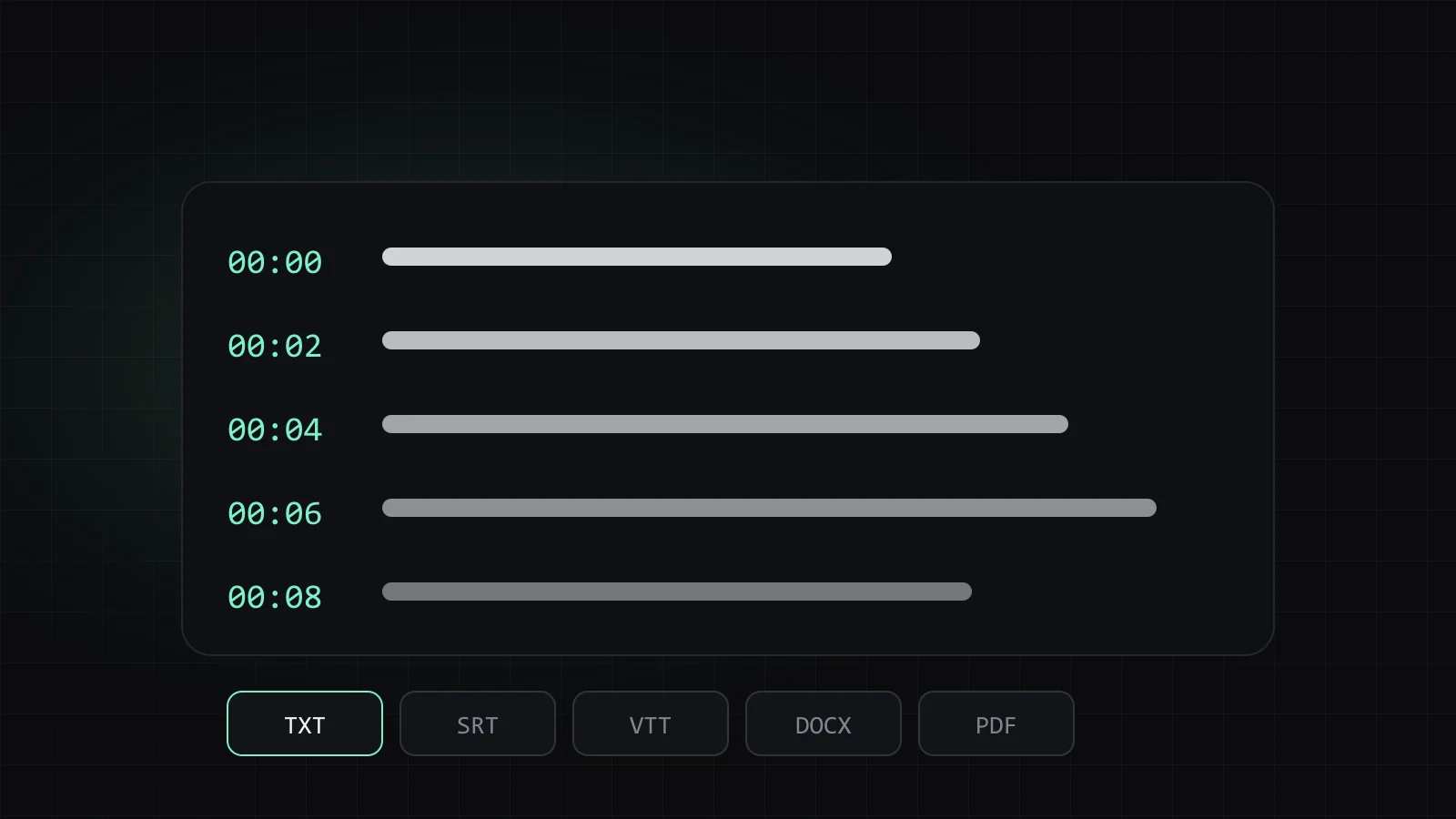
The same captions can be exported in six formats. The words are identical; what changes is the layout and the software that can open the file.
| Format | What it contains | Best for |
|---|---|---|
| Text | The spoken words as plain text, without time codes | Reading, notes, searching, pasting into another document |
| Text with timestamps | Each line preceded by its time code | Quoting a precise moment, finding a passage in the video |
| SRT | Numbered subtitles with start and end times | Video editors, media players, most subtitle tools |
| VTT | WebVTT subtitles, the web standard | Videos played in a browser, web players |
| Word (DOCX) | An editable document | Editing, reworking into an article, sharing with a team |
| A fixed layout document | Printing, archiving, sending a read only copy |
SRT and VTT, the two subtitle formats
Both are plain text files made of short blocks, each with a time range and a line of text. SRT numbers every block and writes times with a comma, like 00:01:12,500. VTT starts with the word WEBVTT, writes times with a dot, like 00:01:12.500, and is the format browsers use for subtitles on the web. If a tool accepts both, either will do; if you are not sure, SRT is the most widely accepted by editing software.
What you can do with a video transcript
Take notes from a lecture or a tutorial
Reading is faster than watching. Export Text or Word, skim the transcript, highlight what matters and keep only your notes. For a course or a long interview, the text is also easy to search for one word.
Quote someone accurately
Journalists, students and researchers need exact words. Text with timestamps shows when each sentence is said, so you can check the quote in the video and point readers to the right moment.
Make a video accessible
Captions and transcripts let people who are deaf or hard of hearing follow a video, and help anyone watching without sound. If you publish your own videos elsewhere, a clean SRT or VTT file is a good base for accurate captions.
Translate the content
A transcript is the starting point of any translation. Translate the plain text to understand a video in a language you do not speak, or translate an SRT file line by line to keep the timings and produce subtitles in another language.
Subtitle an edit
When you edit your own footage, import the SRT or VTT file into your video editor to get subtitles placed in time. If you cut parts of the video, adjust the timings of the blocks that follow the cut.
How accurate are automatic captions
Automatic captions are produced by speech recognition. On a clear voice with little background noise, they are often good enough to follow a video and take notes. They become less reliable in a few typical cases.
- Proper names, brands and places the system has rarely heard.
- Technical vocabulary, acronyms and numbers.
- Strong accents, fast speech and several people talking at once.
- Music, noise or a poor microphone.
When no transcript is available
If the Transcript option is unavailable, with a note saying the video has no captions, there is simply nothing to read. This is common for short clips on some networks, for videos without speech, and for recent uploads whose automatic captions are not ready yet.
- Try again later for a recent video: automatic captions can appear after processing.
- Ask the creator whether subtitles exist, or whether they plan to add some.
- For your own videos, add captions on the platform itself: most networks let creators upload or generate them.
Transcripts on YouTube, TikTok, Instagram and Facebook
The method is the same everywhere, but availability depends on the platform and on the video.
- YouTube is the most complete source: many videos have subtitles written by the creator, automatic captions, or both. See the YouTube video downloader page.
- TikTok, Instagram and Facebook offer a transcript only when the video carries captions that can be read. Paste the link and see whether the option is available: TikTok, Instagram, Facebook.
For the full download method on each network, read how to download YouTube videos, how to download TikTok videos, how to download Instagram Reels, posts and stories and how to download Facebook videos.
Free transcripts, credits and the desktop app
A transcript is part of a download, not an extra. On the website, one download per day is free without an account, and it includes everything you tick for that link: the transcript, plus the video up to 720p, the audio and the cover if you want them.
Credit packs need an account. One credit pays for one link with all its files, credits do not expire, and a download that fails on the server side returns its credit automatically. The desktop app for Windows and macOS offers unlimited downloads, transcripts included, for 47.99 EUR once, on up to 3 devices at a time, with updates included.
Use transcripts responsibly
A transcript reproduces someone's words, and those words are protected like the video itself. Quoting a short passage with credit to its author is common practice; republishing the full transcript of someone else's video is not, unless they agree. Our responsible use page explains the rules we follow.
Get your first transcript
Paste a link, tick Transcript and choose the format you need. One download a day is free, with no account.
Frequently asked questions
How do I get the transcript of a YouTube video?
Copy the link of the video, paste it on SocialDownload, tick Transcript, choose the language and a format such as Text or Word, then download. The option is available when the video has subtitles or automatic captions.
Can I get a transcript of a video that has no captions?
Not with SocialDownload, which uses the captions published with the video. If a recent video has none yet, try again later, as automatic captions can take time to appear.
What is the difference between SRT and VTT?
Both are subtitle files with time ranges and text. SRT numbers its blocks and is accepted by most video editors and players. VTT, or WebVTT, is the web standard used by browsers.
How do I get a transcript with timestamps?
Tick Transcript and choose the Text with timestamps format. Each line then starts with the time it is spoken in the video, which makes quotes easy to check.
Are automatic captions accurate?
They are usually good on clear speech and weaker on names, technical terms, accents and noisy recordings. Use them for notes and drafts, and check quotes against the video.
Can I export a video transcript to Word or PDF?
Yes. Choose Word (DOCX) for a document you can edit, or PDF for a fixed copy to print or share.
Sources
Try it now
Paste a link, tick what you want, done. One free download every day.