Guides
How to Download YouTube Videos: Shorts, 4K, Audio, Transcript and Thumbnail
Updated October 2, 202610 min read
On this page
- How to download a YouTube video in 3 steps
- Where to find the link of a YouTube video
- How to download YouTube Shorts
- Which quality to choose, from 360p to 4K
- How to download only the audio of a YouTube video
- How to get the transcript of a YouTube video
- How to save the thumbnail of a YouTube video
- Why a YouTube video will not download
- Website or desktop app for YouTube
- Download YouTube videos responsibly
- Frequently asked questions
Key takeaways
- To download a YouTube video, copy its link with Share then Copy link, paste it on SocialDownload and tick Video, Audio, Transcript or Cover.
- The website gives one free download per day without an account, with video up to 720p. Credit packs unlock qualities up to 4K.
- Audio comes as M4A, the original stream kept without re-encoding, or as MP3, converted for maximum compatibility.
- A transcript is offered only when the video has captions or automatic captions, as Text, Text with timestamps, SRT, VTT, Word or PDF.
- Private videos and DRM protected content cannot be downloaded. Age restricted videos need a signed in session, which the desktop app can use.
How to download a YouTube video in 3 steps
To download YouTube videos, all you need is the link of the video. The method is the same on a phone, a tablet or a computer, and it works for long videos as well as for Shorts. With SocialDownload, it takes three steps.
- 01
Copy the link of the video
In the YouTube app, tap Share under the video, then Copy link. On a computer, copy the address shown in the address bar of your browser.
- 02
Paste it and tick what you want
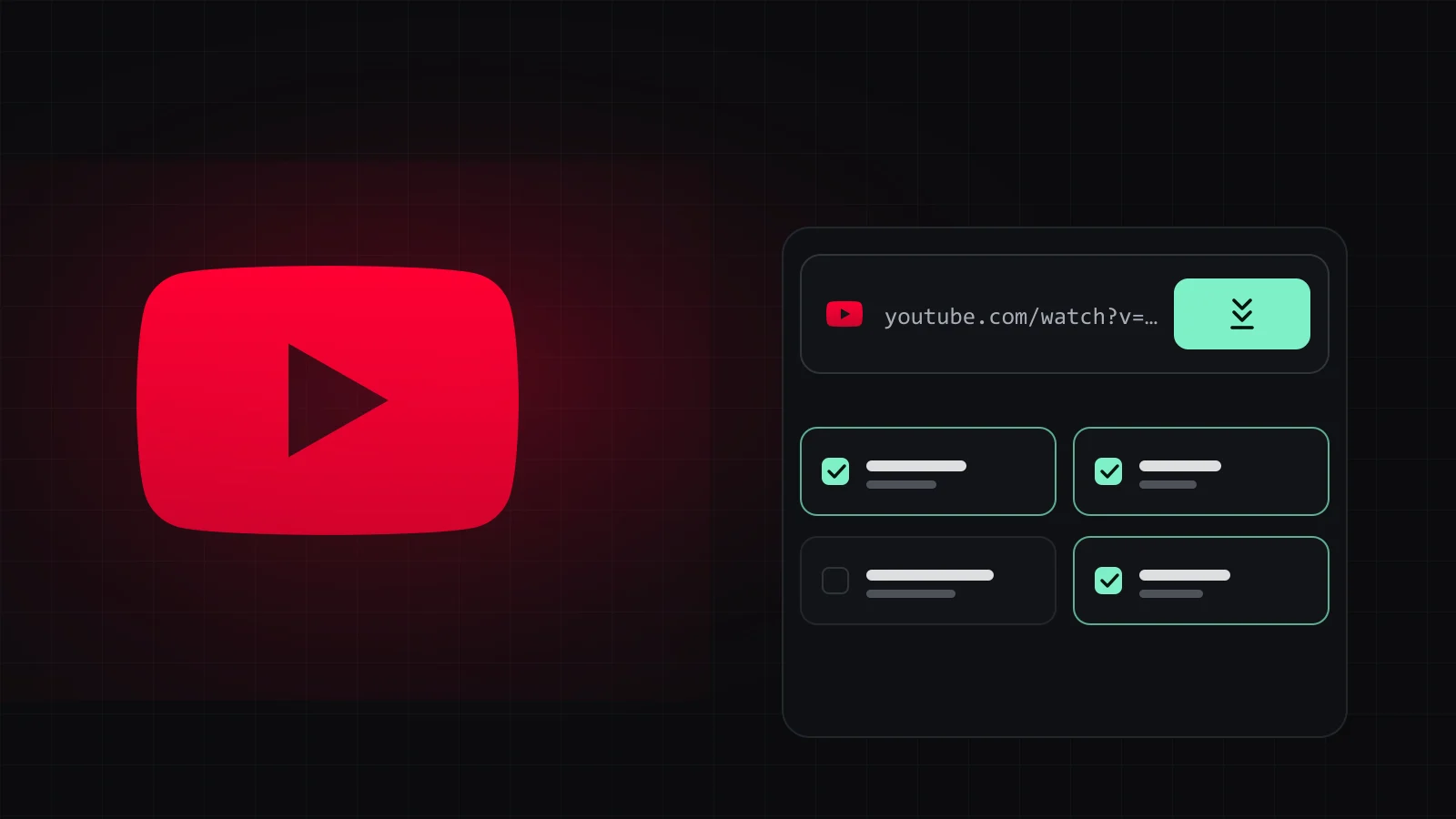
Paste the link on the SocialDownload home page. The YouTube logo appears as soon as the link is recognized. Tick Video and choose the quality, then add Audio, Transcript or Cover if you need them.
- 03
Download your files
Press Download. The files go straight to your device. Everything you ticked for this one link counts as a single download.
The rest of this guide explains each case in detail: where to find the link, how to save a Short, which quality to pick, how to keep only the sound, how to get the transcript and the thumbnail, and what to do when a video refuses to download. If you only want the short version, the YouTube video downloader page sums it up.
Where to find the link of a YouTube video
Every download starts with the link of one video. YouTube shows it in slightly different places depending on the device, but the Share button is always the most reliable way to get it.
| Where you are | How to copy the link |
|---|---|
| YouTube app on a phone or tablet | Tap Share under the video, then Copy link. |
| A Short in the YouTube app | Tap the Share arrow on the right side of the Short, then Copy link. |
| A browser on a computer | Copy the full address from the address bar, or click Share under the player, then Copy. |
| A link someone sent you | Copy it as it is. Long links (youtube.com/watch?v=), short links (youtu.be/) and Shorts links (youtube.com/shorts/) are all recognized. |
Copy the link of a single video. A link to a whole channel or to a playlist points at many videos at once: downloading those in one go is a feature of the desktop app, so the website asks you to paste one video instead.
How to download YouTube Shorts
A Short is an ordinary YouTube video in vertical format, so it downloads exactly like any other video. The only difference is where the share button sits: in the app, it is the arrow in the column of icons on the right side of the screen.
- Open the Short, tap the Share arrow on the right, then Copy link.
- Paste the link on SocialDownload. It usually looks like
youtube.com/shorts/followed by an identifier. - Tick Video, choose a quality from the list, and download. The vertical format is kept as it is.
The quality list only shows what YouTube actually offers for that Short, so you never pick a resolution that does not exist. Many Shorts also use a sound that belongs to someone else, such as a song or a clip from another creator: keep that in mind before you reuse the audio anywhere.
Which quality to choose, from 360p to 4K
After you paste a link, SocialDownload lists the qualities YouTube provides for that video. A video uploaded in 1080p will never be available in 4K, because a download cannot add detail that the source does not have. The higher the number, the sharper the picture and the larger the file.
| Quality | Good for | Where it is available |
|---|---|---|
| 360p, 480p | Small files, quick previews, limited storage | Free on the website |
| 720p (HD) | Phone and laptop screens | Free on the website |
| 1080p (Full HD) | Large screens, presentations, editing | With credits, or in the desktop app |
| 1440p and 2160p (4K) | Big screens, editing with room to crop | With credits, or in the desktop app |
| Above 4K, when the source offers it | Keeping the best version that exists | Desktop app |
Free downloads and credit packs
The website gives you one free download per day, without an account, with video up to 720p. The free allowance is counted per browser, device and network. When you need more, a credit pack lifts both limits: you need an account, one credit pays for one link with all the files you tick for it, credits do not expire, and qualities up to 4K become available.
One practical point: a 4K file is far larger than the same video in 720p. Before you download a long video in a high quality, make sure your phone or computer has enough free space.
How to download only the audio of a YouTube video
To keep only the sound of a video, such as a lecture, an interview or a podcast episode published on YouTube, tick Audio and untick Video. You then choose between two formats.
| Format | What you get | Choose it when |
|---|---|---|
| M4A | The original audio stream, kept without re-encoding | You want the sound exactly as YouTube delivers it |
| MP3 | A version converted from the original for compatibility | An older player, a car stereo or an app refuses M4A |
Because MP3 is a conversion, it cannot sound better than the original stream. If you are not sure, start with M4A, which modern phones, computers and media players read without trouble, and switch to MP3 only when a device asks for it.
You can also tick Video and Audio together: you get the full video plus a separate audio file, and it still counts as one download because it is one link.
How to get the transcript of a YouTube video
Tick Transcript to turn what is said in the video into text. The language list shows each language by its full name, for example “English” or “English (United Kingdom)”, and you pick the format that suits what you want to do with the text.
- Text: clean text to read, search or paste into your notes.
- Text with timestamps: each line keeps its time code, handy for quoting a precise moment.
- SRT and VTT: standard subtitle files for video editors and media players.
- Word (DOCX) and PDF: documents ready to edit, print or share.
The transcript comes from the captions published with the video. Some are written by the creator, others are automatic captions generated by YouTube from the speech, which can stumble on names, technical words or strong accents. When a video has neither, the option is simply not offered. Our guide on how to get a video transcript explains the differences and the formats in depth.
How to save the thumbnail of a YouTube video
The thumbnail, called Cover in SocialDownload, is the image YouTube shows before you press play. Tick Cover to save it in full size, in the format of your choice.
- JPG: the most widely supported format, with small files.
- PNG: a lossless format that image editors handle well. It keeps the image exactly, but it does not add detail the original does not have.
- WEBP: a modern format with light files, well suited to websites.
A thumbnail is the creator's artwork. Saving it to illustrate a review of your own channel, to archive your own uploads or to present a video with proper credit is a common use; reusing it as your own image is not.
Why a YouTube video will not download
Most public videos download without any issue. When one does not, the reason is almost always one of these.
- Private videos: only the accounts invited by the owner can watch them, so they cannot be downloaded.
- Age restricted videos: YouTube asks viewers to sign in, so the website may fail. The desktop app can use your own browser session, which is read on your computer.
- Region restrictions: some videos are blocked in some countries.
- DRM protected content: films and shows rented or bought on YouTube are protected by DRM and cannot be downloaded at all.
- No captions: the video itself downloads, but without captions there is no transcript to offer.
Website or desktop app for YouTube
The website is made for the occasional link. If you download YouTube videos often, need whole playlists, or want the highest quality without counting, the desktop app for Windows and macOS is the better fit.
| What you need | Website | Desktop app |
|---|---|---|
| Number of downloads | 1 free per day, or credits | Unlimited |
| Best quality | 720p free, up to 4K with credits | 4K and beyond when the source offers it |
| Whole channels and playlists | Not available | Included |
| Videos that need a sign in | May fail | Uses your own browser session |
| Price | Free, or credit packs | 47.99 EUR once, lifetime license |
The lifetime license is a single payment, works on up to 3 devices at a time and includes updates. The app runs on your computer and your files stay on your computer.
The official option: YouTube Premium
If you only want to watch offline inside the YouTube app, YouTube Premium includes offline downloads. Those videos stay inside the app: you cannot open them in another player or use them in an edit.
Download YouTube videos responsibly
Downloading is fine for your own videos, for videos whose creator gave you permission, and for videos published under a license that allows reuse, such as Creative Commons. YouTube's own terms limit downloading to the cases they authorize, and copyright still applies to what you save. Our responsible use page explains what that means in practice.
The same method works on other networks: see how to download TikTok videos or how to download Instagram Reels, posts and stories.
Save your first YouTube video
Paste a YouTube link, tick what you need and get your files. One download a day is free, with no account.
Frequently asked questions
Can I download YouTube videos for free?
Yes. On the SocialDownload website you get one free download per day, without an account, with video up to 720p. The free download includes everything you tick for that link: video, audio, transcript and cover.
How do I download a YouTube video in 4K?
Paste the link, tick Video and choose 2160p in the quality list. Qualities above 720p need a credit pack on the website or the desktop app. 4K is only offered when the video was uploaded in 4K.
How do I convert a YouTube video to MP3?
Paste the link, untick Video, tick Audio and choose MP3. If your device reads M4A, choose M4A instead: it keeps the original audio stream without re-encoding.
Can I download YouTube videos on an iPhone or an Android phone?
Yes. Copy the link with Share then Copy link in the YouTube app, open SocialDownload in your mobile browser and paste it. Where the file is saved depends on your browser and your phone settings.
Why is the transcript option unavailable for some YouTube videos?
The transcript is built from the captions published with the video, written by the creator or generated automatically by YouTube. When a video has no captions at all, there is nothing to transcribe: the option stays unavailable and a short note tells you why.
Is it legal to download YouTube videos?
It depends on the video and on what you do with it. Your own content, content you have permission for and content under a reuse license are fine. For everything else, copyright and YouTube's terms apply. See our responsible use page.
Sources
Try it now
Paste a link, tick what you want, done. One free download every day.